- Products
-
Design Templates
- Featured Design Galleries
- More Galleries
- Services & Resources
- Free Sample Kit
- Deals





 Create new file in InDesign (New>Open)

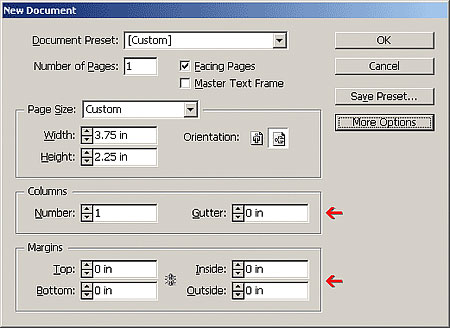 Input desired dimensions with 0.25" bleedMake sure "Gutter" and all fields in Margins section are set at zero (0)
PsPrint requires .125" bleeds on all four sides of your artwork (i.e., 4"x6" postcard image with bleeds would have dimensions of 4.25" x 6.25" in your artwork file.) If your image has a white border on all four sides, bleeds are recommended but not required. If your image is not white on all four sides, you MUST include bleeds in your files.More information about bleeds.
The cutting process for printed materials has a mechanical tolerance of about .0625 or 1/16 of an inch. When using a border in your artwork, it is essential that your design use at least .25 or 1/4 of an inch of white space from your border to the cut line to maintain a symmetrical appearance. More information about borders.
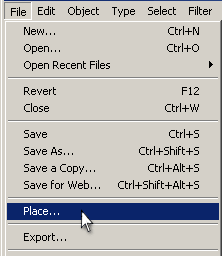
Download Template for your desired product and place into document.
File>PlaceA cursor will appear Click once and template will appear on document
Drag template to the document outline
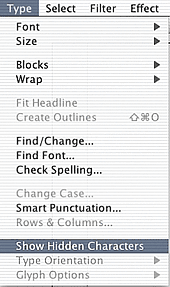
You must make sure there are no hidden characters in your artwork.
Every font field ends with a pound or number symbol ( ). If there are symbols in your artwork without any type before, delete those type fields or make sure those fonts are outlined.
Type>Show Hidden Characters

All text within files must be converted to outlines with the outline set to zero (0) to eliminate the need for fonts.
Edit>Select AllType>Create Outlines 
Save file as Acrobat 4 (PDF1.3)
File>Export PDF
Make sure that your file is in "CMYK" Color Mode 
The color mode of submitted files must be CMYK. If your files are submitted using any other color standard, such as RGB or Pantone, they will be converted to CMYK. Conversion from one color standard to another may cause colors to shift.More information about CMYK color mode.
Gradients are commonly used in printing and in most instances produce good results. Gradients can be represented in a file as a mathematical equation (Vector) or rendered by the application into a series of pixels (Raster). Whether created as rasters or vectors, gradients below 10% may not reproduce accurately.More information about gradients.
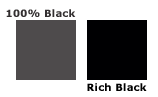
When you want an area of solid black within a document, 100% black (K) will not result in a solid, saturated black. Instead, use Rich Black, as represented by C:50% / M:40% / Y:40% / K:100%.